A secret shortcut to use Emoji in Mavericks
Emoji are the cute little smileys and emoticons that originated in Japan and have grown popular around the world since they became available on the iPhone. Here’s a neat trick for using Emoji on the Mac in OS X Mavericks.
Whenever you are in a text field in Mavericks, just press Command-Control-Space and an emoji panel will appear. Then click any of the Emoji icons to insert it at the current position in the text.
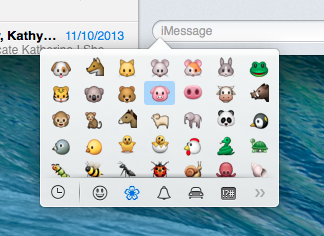
For those who find it quicker to use the keyboard than the mouse, you can navigate between the Emoji icons with the arrow keys, and shift left and right between the different sections using Tab and Shift-Tab respectively. If you know what you are looking for, just begin to type the name, and the Emoji will filter as you type. Give it a try with “dog” or “kiss” or “poo”.
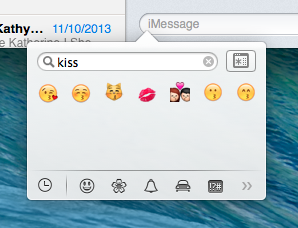
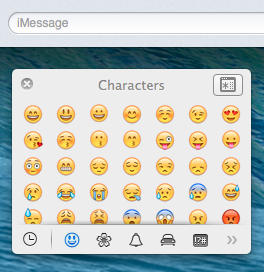
By default, the Emoji panel will disappear once you choose an icon. However, if you find yourself using it a lot, just drag it away from the text field to “detach” it, and it will stay open until you click the close button in the top left. Also, the button in the top right expands the panel into the full size “Character Viewer” that was previously available in Mountain Lion.
Continuous offline dictation in Mavericks
The dictation feature introduced last year in OS X Mountain Lion left a lot to be desired. Just like Siri on iOS, it required you to speak in short bursts, then wait while the data was sent to Apple’s servers and the results were returned. As well as requiring a constant internet connection, it was almost unusable for dictating anything more than a couple of sentences.
Fortunately, with OS X Mavericks, there is now an option to enable “Enhanced Dictation”, which solves a lot of these problems. To do this, open up System Preferences and go to the Dictation and Speech section. Here you will find a checkbox, Use Enhanced Dictation, which “allows offline use and continuous dictation with live feedback”.
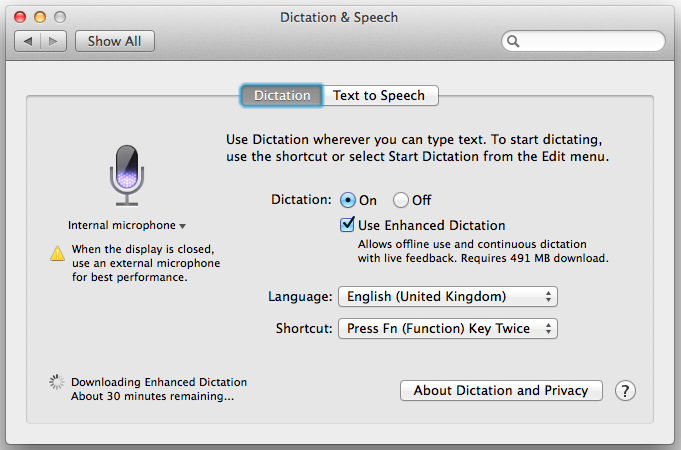
As you will probably notice, enabling this feature requires a fairly large download. For me this was 491 MB, but others have reported between 700 and 800 MB, so I suspect it depends on your chosen language.
Once the download has completed, you can dictate text just as before, using the shortcut specified in the Dictation and Speech preferences. Only now you will find the transcription happens locally on your Mac instead of on Apple’s servers. This allows the words to appear “live”, as you speak, resulting in a much more enjoyable and useful dictation process.
There are a number of dictation commands to help with formatting and punctuation. As far as I can tell, these are just the same as in Mountain Lion, however they become much more useful with this new enhanced dictation feature. Apple provides a full list, which contains things like “all caps”, “smiley face”, “new paragraph” and “next line”.
While this is a massive improvement over Mountain Lion’s dictation features, there are still a few further additions needed before the free built in OS X dictation will be a serious competitor to commercial alternatives such as Dragon Dictate. For example, there needs to be a quick and easy way to edit existing text and correct transcription errors, preferably without needing to use the keyboard or mouse. It would also be great if the system automatically learnt from your corrections over time, or allowed manual training through the addition of tricky words such as names and places to the dictionary. Maybe next year...
Hidden settings to adjust Dock animations
Here are a couple of tips for customising the delay and animation speed of your Dock if you have it set to automatically show and hide (in System Preferences).
Custom delay time
You may have noticed that there is a short delay before the Dock appears when your mouse hits the edge of the screen. There is a hidden setting that allows you to adjust the delay time using the Terminal.
Start by opening up the Terminal app (in Applications/Utilities). To remove the delay entirely, paste in the following line and press Return.
defaults write com.apple.Dock autohide-delay -float 0
The changes won’t take effect until you restart the Dock, which you can do by typing killall Dock and pressing Return.
The number at the end of the command is the delay time in seconds, which you can customise to your liking. My preferred delay is 0.1, which is a bit quicker than the default. To return to the default, just use the following command:
defaults delete com.apple.Dock autohide-delay

Custom animation speed
There is a related hidden setting that allows you to customise the speed of the animation when the Dock slides onto the screen. As before, paste the following line into the Terminal and press Return.
defaults write com.apple.dock autohide-time-modifier -float 0.5
Remember to restart the Dock with killall Dock for the changes to take effect. Just like the delay, the number at the end is the length of the animation in seconds. 0 will make the Dock instantly appear with no animation. My preferred time is about 0.5, which makes things just a little snappier than the default.
To return to the default, just use the following command:
defaults delete com.apple.Dock autohide-time-modifier
Using Finder labels for tagging files and automating actions
Labels are a handy way to organise your files in the Finder by colour-coding their icons. Until OS X Mavericks is released later this year, they are a pretty good substitute for having a proper way to tag files in the Finder.
Adding a label to a file or folder is simple. Just right-click the icon and choose one of the coloured squares from the menu. Alternatively, you can select the icon by clicking on it, and choose the label from the File menu in the menubar.
If you want to use labels a bit more like tags, it is possible to choose a custom name for each label colour in the Finder Preferences (under Finder in the menubar). Once you have done this, the only limitation compared to a real tagging system is that you are restricted to only having 7 different tags.
Using labels as tags can work really well in conjunction with Saved Searches (also known as Smart Folders).
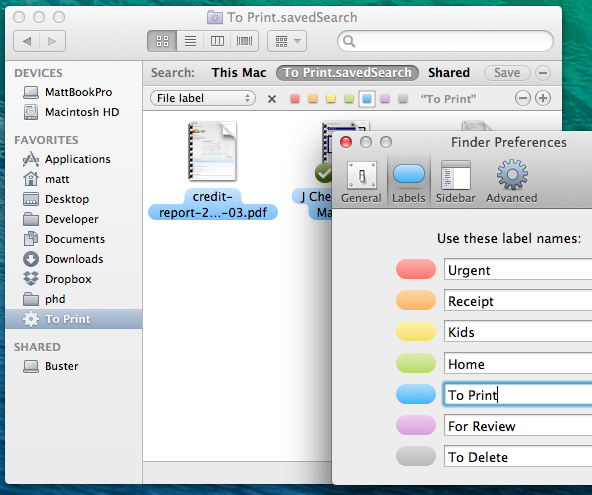
Most people will have their documents organised into separate folders for each project, and will have separate folders for work and home files. But sometimes, for example, you might want to see all your receipts from all your different projects together, or all the files that you need to print. Instead of duplicating all your receipts into a separate “receipts” folder, you can just use labels along with a Saved Search that displays all the files with that label.
To set up the saved search, start by switching over to the Finder and choosing Find from the File menu (or type Command-F). Choose Other from the left hand drop-down menu, and choose File label from the list. Then just choose the desired label, and click the Save button to add the Saved Search to your sidebar.
Power users can take this idea even further using a tool like Hazel. Firstly, Hazel can automatically add labels to your files based on your own criteria. For example, automatically adding a red label to files that have been in the Downloads folder for more than a week, or adding a purple label to files that were downloaded from your bank website.
Secondly, Hazel can automatically perform actions when you assign a specific label to a file. For example, it could import MP3 files into iTunes if they you label them purple, or resize images to 800x600px and upload them to a server if they are labelled green, or run any AppleScript or shell script you want.
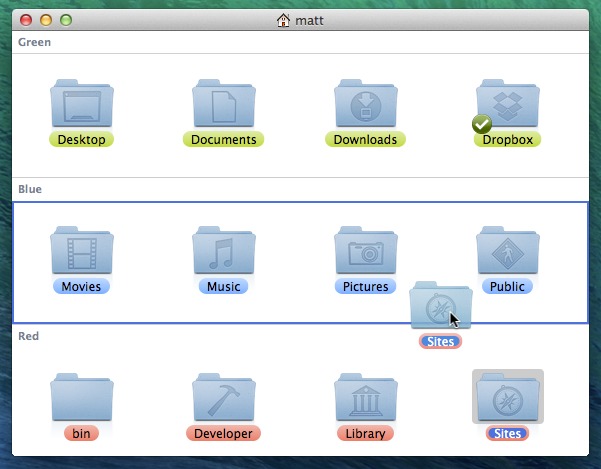
Bonus tip: You can quickly change the label of a file by dragging it into the section for a different label in the folder, as show in the screenshot below. For this to work, you must have your folder in Icon View, and have the folder Arranged by Label.
ReadKit tip: Nested rules in smart folders
As I mentioned yesterday, I’ve switched to using ReadKit for reading RSS feeds on the Mac.
ReadKit’s “smart folders” are a great feature that Reeder lacked, making me consider sticking with ReadKit even if Reeder introduces third party sync options in future.
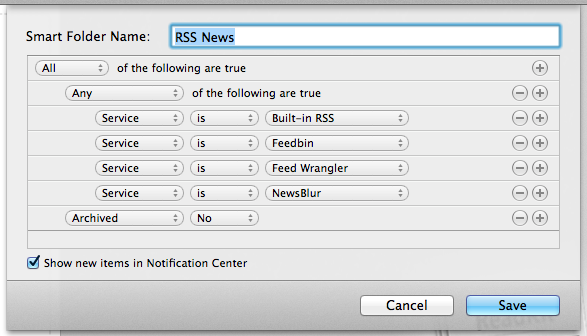
One problem I had was figuring out to create smart folders with nested groups of rules where “any” or “all” must be true. One of the default smart folders has nested rules, so I knew it must be possible, and after a bit of trial and error I figured it out.
Simply hold down the Option (alt) key and you should see the plus (+) button will switch to an ellipsis (…). Clicking this will create a new nested section where you can require “any” or “all” of the nested rules to be true.

Using this technique, it’s worth adding a rule to your smart folders that excludes archived items, so articles you have already read don’t show up.
Dealing with the demise of Google Reader
I have long been a happy user of Reeder for reading RSS feeds on both the Mac and iOS. However, that will all change on Monday, when Google shuts down Google Reader. Unfortunately, Reeder uses Google Reader behind the scenes to manage your subscriptions and unread items and sync them across your devices. And because the developer of Reeder hasn’t been able to add support for other sync services in time, this leaves many of us in an interesting situation where we need to find both a new RSS reader app and a new backend sync service.
RSS sync services
Here are the main contenders in the battle to replace Google Reader. Some have a one-click process for importing your Google Reader subscriptions, while others will require you to download your subscriptions as a file and then upload the file to their service to import.
Feedly (free)
Feedly seems to be the most popular Google Reader replacement, presumably because it is completely free and was up and running right away. It has a web interface that is on the whole reasonably well designed apart from a few quirks. There are also native apps for iPhone and iPad.
One thing that puts me off Feedly is the seeming lack of business model, as it raises the probability of intrusive advertising in future, or a sudden demise like Google Reader. However the main deal-breaker is the current lack of export functionality, making it extremely difficult to switch away from Feedly at any point in the future.
Feed Wrangler ($19/year)
Feed Wrangler is the work of “Underscore David Smith”. He is pretty friendly with many Apple/tech podcasters and bloggers, and as a result Feed Wrangler has received many “celebrity” endorsements from people like Marco Arment, Shawn Blanc and Federico Viticci.
The most unique feature is “smart streams,” which work like smart playlists in iTunes. I could see this being useful for building filters for really high volume RSS feeds, so only the articles that you are interested in get through. They are also great for grouping articles around topics, regardless of which feed they are from. This is a big improvement over the traditional “feeds grouped into folders” model, as it allows grouping to work on a per-article basis instead of an entire feed, and also allows articles to appear in multiple groups.
Many people have complained that Feed Wrangler’s web interface and apps are “ugly,” but when considering it purely as a backend sync service to use with other apps, this isn’t really a concern. A slightly more practical problem with Feed Wrangler is its inability to import folders from Google Reader. You can use the smart streams feature to create what are essentially folders, however you will have to do this manually after importing your subscriptions.
Feedbin ($20/year)
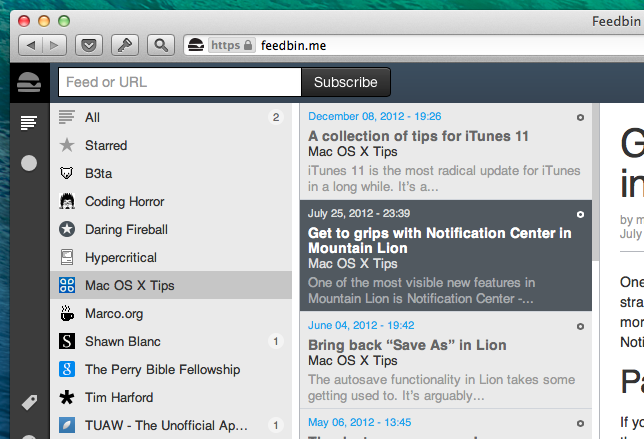
Feedbin offers a widely supported replacement for Google Reader in terms of syncing, along with what is probably my favourite web interface of all the services here - in fact probably the only web interface I could see myself using instead of a native app. It’s far more simple and intuitive than Feedly, while having the quality design and attention to detail that Feed Wrangler lacks.
Unlike Feed Wrangler, Google Reader folders are automatically imported and converted into Feedbin’s tags. These tags can be used in exactly the same way as Google Readers folders, only go a bit further as a single feed can have multiple tags, essentially allowing it to be in multiple folders at once.
NewsBlur ($24/year)
NewsBlur has been around since well before Google announced it was shutting down Reader, but has received renewed attention since. It has a novel web interface that in some ways reminds me of Safari’s (long gone) built-in RSS viewer. NewsBlur is clearly aimed at “power users,” which can be both its greatest weakness and its greatest strength. It has many features that go far beyond the other services, such as inline comments from NewsBlur users, and a system you can train to automatically highlight stories you will like and hide stories you won’t. However, this also results in NewsBlur having one of the most cluttered interfaces, especially if you rarely use these power features.
In terms of native apps, there is support from ReadKit on the Mac, however, as far as I know the only option on iOS is the official NewsBlur app.
The rest
- Digg Reader - Recently entered beta, so one to watch for the future. Betaworks recently acquired both Digg and Instapaper, so it will be interesting to see if we get any nifty integration in future.
- Tiny Tiny RSS - An open source, self-hosted solution.
- Fever - A self-hosted solution with a one-off $30 fee. Reeder for iPhone support.
- The Old Reader - Currently in beta, very little support amongst Mac and iOS apps.
- MnmlRdr - Web interface only.
Mac RSS apps
ReadKit ($5)
At first glance, ReadKit appears very similar visually to Reeder for Mac. It has the familiar 3 column view, with almost identical buttons in the top and bottom toolbars. It feels a bit like an imperfect imitation of Reeder, although that is hardly a major issue.
In terms of functionality ReadKit has all the features that Reeder offers and far more. Most importantly, of course, is support for a multitude of sync services, including Feed Wrangler, Feedbin, NewsBlur and Fever. I’m also particularly liking the Instapaper and Pocket integration too, which makes ReadKit a fantastic unified place to do all my reading on my Mac.
The other notable feature is smart folders, which are just like Feed Wrangler’s smart streams. The added benefit of ReadKit’s smart folders is that they work with any (or multiple) sync services, however the downside is that they won’t appear outside of ReadKit on your other devices.
NetNewsWire ($10 pre-order, usually $20)
NetNewsWire has been around almost as long as RSS itself. It has a loyal following, and the recent update to version 4 brings a nice UI overhaul. The big problem with NetNewsWire is the current lack of any sync options whatsoever. New versions of the iOS apps are also still currently under development, so it’s likely that a proper sync solution will be on a similar timescale to Reeder for Mac.
Caffeinated
Caffeinated gets an honourable mention purely for its absolutely beautiful interface. Like NetNewsWire it is currently completely lacking in sync options, and no proper support for third party sync services is even on the roadmap. But if sync is not an issue for you, it looks fantastic.
iPhone and iPad RSS apps
On the iPhone, Reeder already supports Feedbin and Fever. Supposedly it will support Feed Wrangler any day now, but without proper support for smart streams. So if you are a happy Reeder user, there might not be an urgent need to switch, but you might want to take the opportunity to assess some of the alternatives. If you choose Feedly, Feed Wrangler or NewBlur for your sync service, their own native apps are an option. However, like its web interface, Feed Wrangler’s app receive a lot of complaints for being “ugly”. While it’s not a conventional RSS reader, Flipboard has recently gained a lot of popularity as an alternative way to read news.
For the iPad, Mr Reader has been almost universally touted as the best option.
Conclusions
Everyone has different requirements and tastes, meaning there is no obvious best choice suitable for everyone. In a way that is one of the great things about the death of Google Reader - such an amazing ecosystem of different apps and services has sprung up so quickly. In the end, I settled on using Feed Wrangler for my sync service. Feedbin was a close second, and likely would have been my first choice if I anticipated making regular use of a browser-based web interface. In terms of apps, I’m currently using ReadKit on the Mac, while keeping an eye on the progress of Reeder and NetNewsWire. For the iPhone, I’m planning on just sticking with Reeder, which will mean putting up with a possible interruption if Feed Wrangler support comes after Monday. On the iPad I’m actually doing most of my reading through Flipboard.
