Automate Trash Emptying
It involves an AppleScript that you attach to the trash as a Folder Action. This script checks the size of the trash every time you add a file to it. If the size goes over a limit, it will deleted the item that has been in the trash the longest.
There are various versions of the script on the Mac OS X Hints page as many users added suggestions in the comments. If you are interested, take some time to read through the page to see how the script works. Adding all the suggestions and improvements, here is the final version of the script:
on adding folder items to this_folder after receiving added_items
	try
		-- Size limit of the Trash folder in MB
		set trash_limit to 2048

		--  Check size & Touch all incoming items to update the modified date to now
		repeat with i from 1 to the count of added_items
			set a_file to item i of added_items

			-- Get incoming item size and check if it exceeds the max trash size
			set a_file_size to ((do shell script "du -sk " & quoted form of (POSIX path of a_file) & "| awk '{print $1}' ") / 1024)
			if a_file_size is greater than trash_limit then
				display dialog quote & (name of (info for a_file)) & quote & " is too big for the Trash. Would you like to delete it permanently?" buttons {"Yes", "No"} default button "No"
				set response to the button returned of the result
				if the response is "Yes" then
					-- Permanently delete
					set sh_script to "rm -Rf " & quoted form of (POSIX path of a_file)
					do shell script sh_script
				end if
				if the response is "No" then
					-- Rename and move to Desktop
					set sh_script to "cd ~/Desktop;mv " & quoted form of (POSIX path of a_file) & " " & quoted form of (POSIX path of a_file)
					do shell script sh_script
					display dialog quote & (name of (info for a_file)) & quote & " has been moved to the Desktop."
				end if
			end if
			if a_file_size is not greater than trash_limit then
				set sh_script to "touch " & quoted form of (POSIX path of a_file)
				do shell script sh_script
			end if
		end repeat

		-- Get the current Trash size in 1k clusters, then divide by 1024 to get megabytes
		set trash_size to do shell script "du -sk ~/.Trash/ | awk '{print $1}'"
		set trash_size to trash_size / 1024

		-- Delete old items until we're under the limit
		repeat while trash_size is greater than trash_limit
			set trash_files to (list folder this_folder without invisibles)
			set oldest_file to {}

			-- Get the least recently deleted file in the Trash folder
			repeat with i from 1 to the count of trash_files
				set a_file to alias ((this_folder as text) & (item i of trash_files))
				if i is equal to 1 then set oldest_file to a_file
				if the (modification date of (info for a_file)) comes before (modification date of (info for oldest_file)) then set oldest_file to a_file
			end repeat

			-- Delete the file and update the Trash icon
			set sh_script to "rm -Rf " & quoted form of (POSIX path of oldest_file)
			try
				do shell script sh_script
			on error
				display dialog "Permission denied on file " & quoted form of (POSIX path of oldest_file) & " would you like to try with administrator priviledges?"
				do shell script sh_script with administrator privileges
			end try

			-- And rinse!
			set trash_size to do shell script "du -sk ~/.Trash/ | awk '{print $1}'"
			set trash_size to trash_size / 1024
		end repeat
		tell application "Finder" to update trash
	end try
end adding folder items to
Select all the text and paste it into AppleScript Editor (in Applications/Utilities). Now you need to decide what size limit your trash will have. This is specified in megabytes on the 4th line of the script. It is currently set to 2048 (2GB). If you would like a different size, change this number. 512 for example, would mean that older items would be deleted to keep the total size under 512 MB.

Once you are done choose Save As from the File menu and go to the Library in your User folder. In here go to Scripts, then Folder Action Scripts. You will probably have to create these folders unless you have added folder actions in the past. Save the script here.
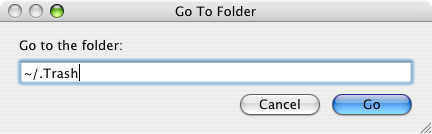
Now open up Folder Actions Setup (in Applications/AppleScript). If you click the plus button, you will be presented with a normal "Open" dialog. However there is the problem that the Trash is a hidden folder. It's actually located in your user folder with Documents, Music, Movies etc. To get to it, press Command-Shift-G. In the box that appears, type "~/.Trash" (without the quotes) and click Go then Open.
In the list that appears, choose the script that you just saved. Now you can start trashing things without ever having to worry about emptying the Trash again!
Be warned that this script permanently deletes files from your computer, without you specifically telling it to do so. If you change your mind and want to retrieve a file you put in the trash, you may find that it is already gone.
